File & image uploads
Annotate a String field with @AdminUpload and it becomes a drag-and-drop uploader with live progress. Files go to a local folder, Amazon S3 (or any S3-compatible service) or ImageKit. Switching provider is a configuration change only.
Quick start
Annotate the field
@Column(length = 500)
@AdminField(label = "Image")
@AdminUpload(folder = "products", maxSize = "5MB")
private String imageUrl;   // stores the uploaded file's URL
Configure a storage
spring:
  jpa:
    admin:
      storage:
        default:            # used by every @AdminUpload without a storage name
          type: local
          directory: ./uploads
          public-path: /uploads
Upload
Open a record and drag an image onto the field. The URL (here /uploads/products/2026/10/3f2c1a9e-front.png) is saved when you save the record.
The annotation
@AdminUpload(
    storage = "default",                       // which configured storage
    folder = "products",                       // key prefix inside the storage
    accept = {"image/png", "image/jpeg"},      // allowed types
    maxSize = "5MB"                            // size limit
)
| Option | Default | Notes |
|---|---|---|
storage |
default |
Name under spring.jpa.admin.storage. If no such storage is configured, the application fails at startup and lists the fields. |
folder |
none | Files are stored as folder/yyyy/MM/<8-char id>-<cleaned original name>.<ext>: unique, but still readable. |
accept |
PNG, JPEG, WebP, GIF | Exact MIME types, or wildcards like image/*. SVG is accepted only when image/svg+xml is listed explicitly, because SVG files can contain scripts. |
maxSize |
5MB |
500KB, 10MB, 1GB or a byte count. |
When every accepted type is an image, the field shows image previews; otherwise it shows file chips. Examples:
@AdminUpload(accept = "application/pdf", maxSize = "10MB")
private String invoicePdf;

@AdminUpload(accept = {"text/csv", "application/vnd.openxmlformats-officedocument.spreadsheetml.sheet"})
private String importFile;

@AdminUpload(storage = "avatars", accept = "image/*", maxSize = "2MB")
private String avatarUrl;
Storages
Configure one storage named default, or as many named storages as you need, and choose one per field with storage = "…". You can mix providers, and have several of the same type (two S3 buckets, for instance).
spring.jpa.admin.storage:
  default:
    type: local
    directory: ./uploads        # created at startup
    public-path: /uploads       # URL the folder is served from
Uploads stream through the admin API to disk with the size limit enforced, and are served from public-path. Use a persistent volume in containers. Local storage isn't shared between instances, so prefer S3 or ImageKit when you scale out.
spring.jpa.admin.storage:
  default:
    type: s3
    bucket: acme-uploads
    region: ap-south-1
    access-key: ${AWS_ACCESS_KEY_ID}       # omit both keys to use the
    secret-key: ${AWS_SECRET_ACCESS_KEY}   # default AWS credential chain
    public-url: https://cdn.acme.com       # optional CDN in front of the bucket
Add the SDK dependency (it's optional, so other applications don't carry it):
<dependency>
    <groupId>software.amazon.awssdk</groupId>
    <artifactId>s3</artifactId>
    <version>2.46.7</version>
</dependency>
The browser uploads directly to the bucket with a presigned URL that's valid for 15 minutes and locked to the exact content type and size, so large files never pass through your server. The bucket needs a CORS rule for your admin's origin:
[{
  "AllowedOrigins": ["https://admin.acme.com"],
  "AllowedMethods": ["PUT"],
  "AllowedHeaders": ["*"],
  "MaxAgeSeconds": 3000
}]
Saved URLs use public-url when it's set, otherwise https://<bucket>.s3.<region>.amazonaws.com/<key>. Make the objects readable to whoever needs them, through a bucket policy or CloudFront.
spring.jpa.admin.storage:
  default:
    type: s3
    bucket: uploads
    region: us-east-1
    endpoint: https://minio.internal:9000   # or your R2 / Spaces endpoint
    path-style: true                          # usually required for MinIO
    access-key: ${S3_ACCESS_KEY}
    secret-key: ${S3_SECRET_KEY}
The same S3 provider works with any S3-compatible service. With path-style, URLs look like endpoint/bucket/key; without it, bucket.endpoint/key.
spring.jpa.admin.storage:
  default:
    type: imagekit
    public-key: ${IMAGEKIT_PUBLIC_KEY}
    private-key: ${IMAGEKIT_PRIVATE_KEY}
    url-endpoint: https://ik.imagekit.io/acme
The browser uploads directly to ImageKit with a short-lived signature (30 minutes) created on your server. The private key never reaches the browser. After the upload, the server confirms the file through ImageKit's API. No extra dependency is needed.
Declare a FileStorage bean and reference its type():
@Component
class CloudinaryStorage implements FileStorage {
    public String type() { return "cloudinary"; }
    public UploadTicket prepare(String key, String contentType, long size, String localTicket) { … }
    public StoredObject inspect(String key, Map<String, String> providerData) { … }
    public void delete(String key, Map<String, String> providerData) { … }
}
How an upload works
sequenceDiagram
    autonumber
    participant B as Browser
    participant A as Admin API
    participant S as Storage (S3 / ImageKit / disk)
    B->>A: prepare (field, name, type, size)
    A-->>B: signed ticket + where to send the file
    B->>S: upload with progress events
    B->>A: complete (ticket)
    A->>S: read size + first bytes
    A-->>B: verified URL (or reject and delete)
B->>A: save record with the URL- Prepare. The server checks the field's
acceptandmaxSizerules and signs a ticket that expires in 30 minutes. The ticket binds the storage, key, type and size. - Upload. The browser sends the file straight to the storage (or to the API for local storage) and reports real progress.
- Complete. The server reads the stored file's size and first bytes to confirm its real type. A mismatch, such as HTML renamed to
.png, is deleted and rejected with a clear message. - Save. The returned URL is saved with the record like any other field.
In the console
- Empty: a drop zone that names the allowed types and limit ("PNG, JPEG, WebP or GIF · up to 5 MB").
- Before uploading: wrong types and oversized files are rejected instantly, with the reason.
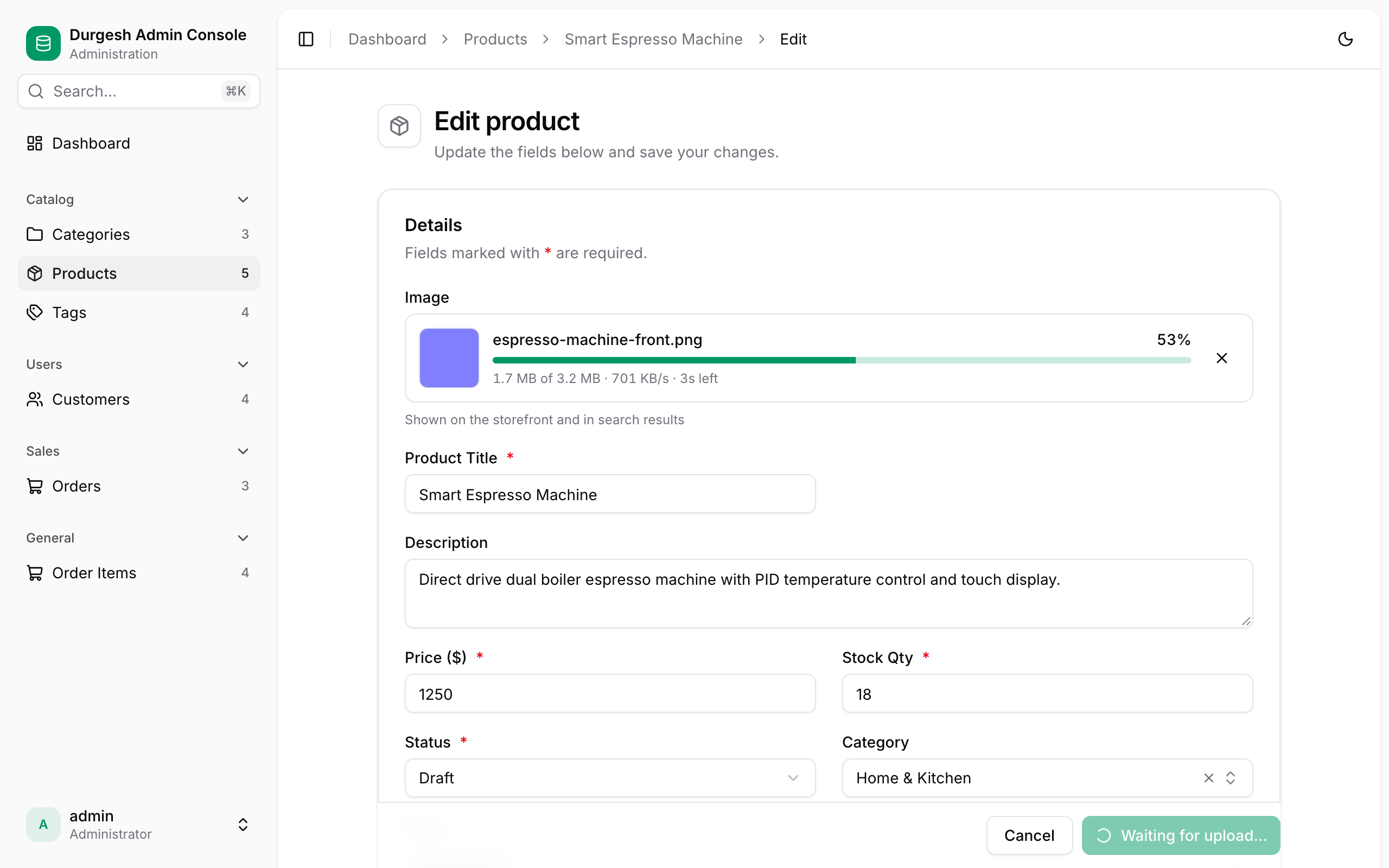
- Uploading: a preview, the file name, a progress bar, "1.7 MB of 3.2 MB · 698 KB/s · 3s left", and Cancel.
- Done: a preview card with Replace, Remove and Open.
- Errors: a message with Retry.
- Save shows "Waiting for upload…" and stays disabled until uploads finish.
- Tables show thumbnails or file chips; record pages show images in a media panel with a full-size viewer.
Security
| Protection | Details |
|---|---|
| Authentication | Every upload endpoint requires an admin session and a CSRF token. |
| Rules enforced on the server | Type and size are checked when preparing, enforced while streaming (local) or by the signature (S3), and verified after upload. |
| Content sniffing | The real type is detected from the file's bytes. Disguised files are deleted. |
| Signed tickets | HMAC-signed and expiring; a client can't upload to or complete a key it wasn't given. |
| SVG off by default | SVG must be listed explicitly in accept. |
| Safe serving (local) | Files are served with X-Content-Type-Options: nosniff and a sandboxing Content-Security-Policy. |
| Safe links | The console only renders http(s) URLs and same-site paths, never javascript: or data:. |
Uploaded files are public by URL
Local public-path files are served without authentication, so images can be shown on your storefront. Don't store confidential documents in a public storage; use a private bucket with your own access layer instead.
Multiple instances
Tickets are signed with a random key generated at startup. Behind a load balancer, give every instance the same key:
Use S3 or ImageKit (or a shared volume) so every instance sees the same files.
Limits
- One file per field. Galleries and multi-file fields aren't supported yet; use several fields or a child entity with inline rows.
- Replacing or removing a file updates the record but keeps the old file in storage.
- No resizing or thumbnails. Use ImageKit transformations or your CDN.